Create Leave Allocation
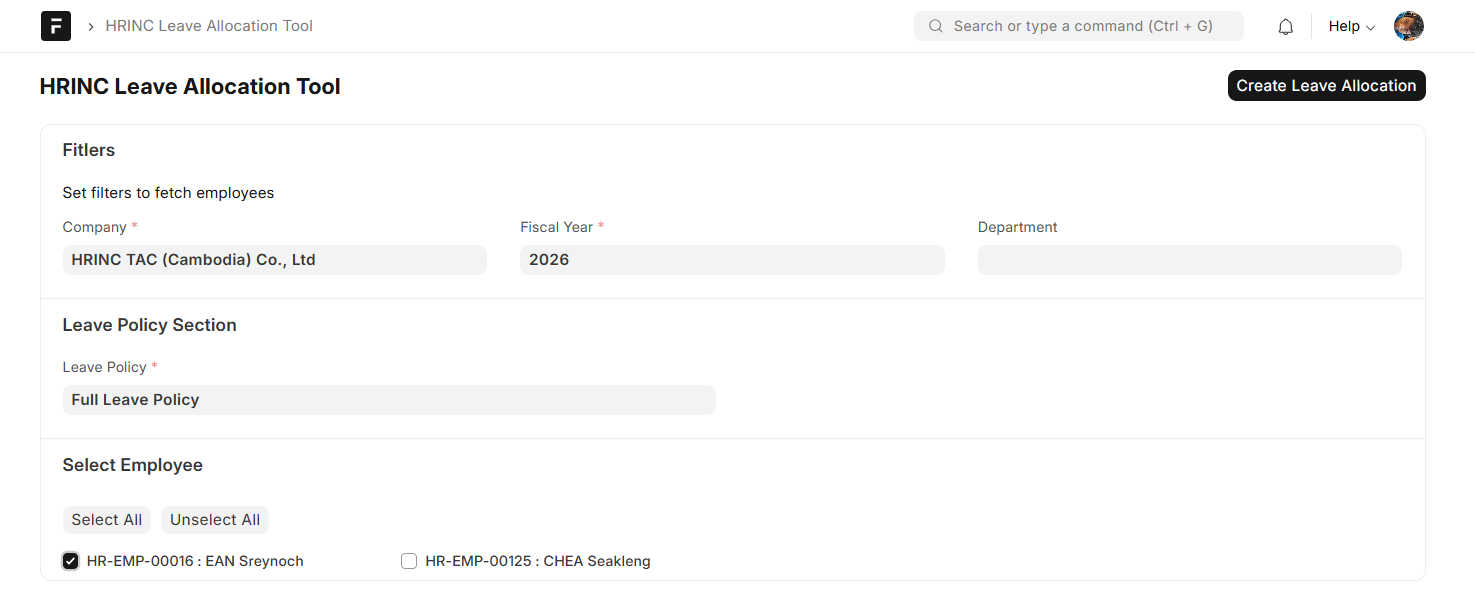
1. HRINC Leave Allowcation Tool
Goal: Generate batch leave allocations based on company policy.
Example: An employee working for 4 years. Increase Annual leave auto without manual calculation.
- Navigate to HRINC Leave Allocation Tool
- Select and Choose Company* | Fascal Year* | Department (Optional)
- Select and Choose Leave Policy Section -> Full Leave Policy
- Tick "Employee"
- Click Create Leave Allocation to Generate and Calculate
2. Workforce Leave Allocation
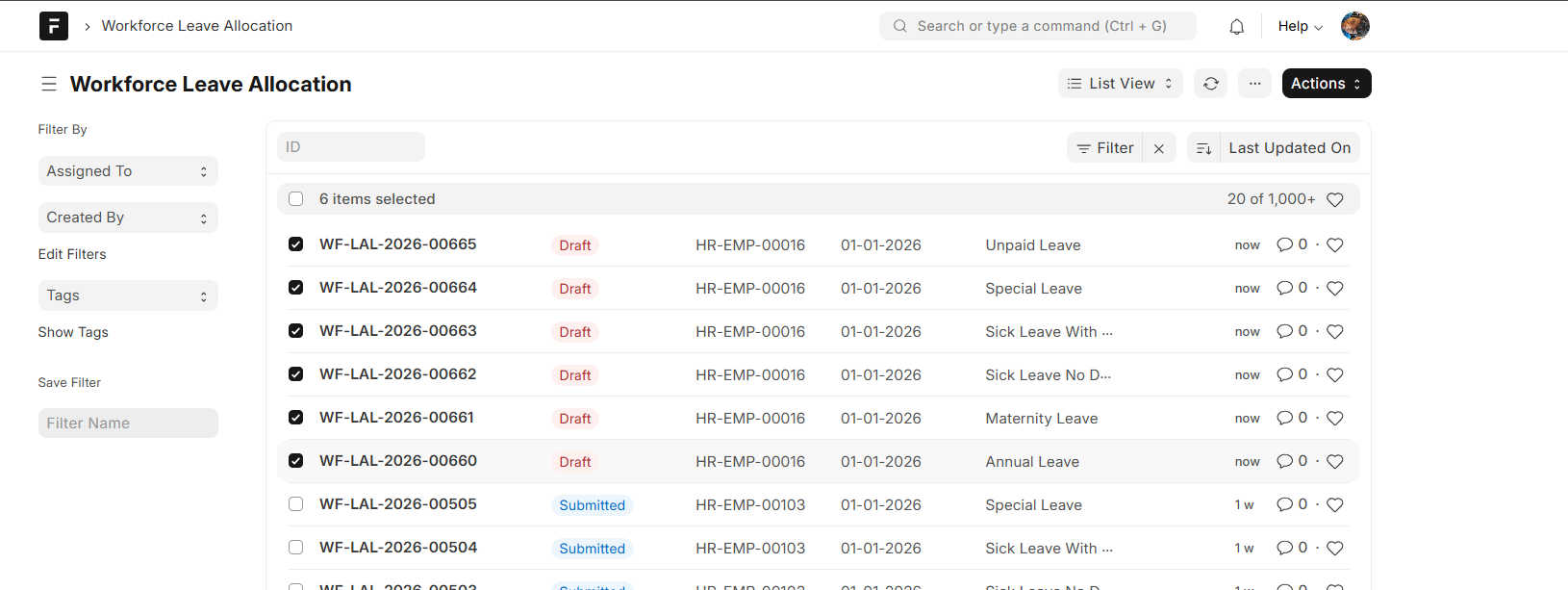
Goal: Review, verify, and finalize the generated batch leave allocations.
- Navigate to Workforce Leave Allocation (you will see drafts).
- Check and verify if needed
- Tick all draft and submit
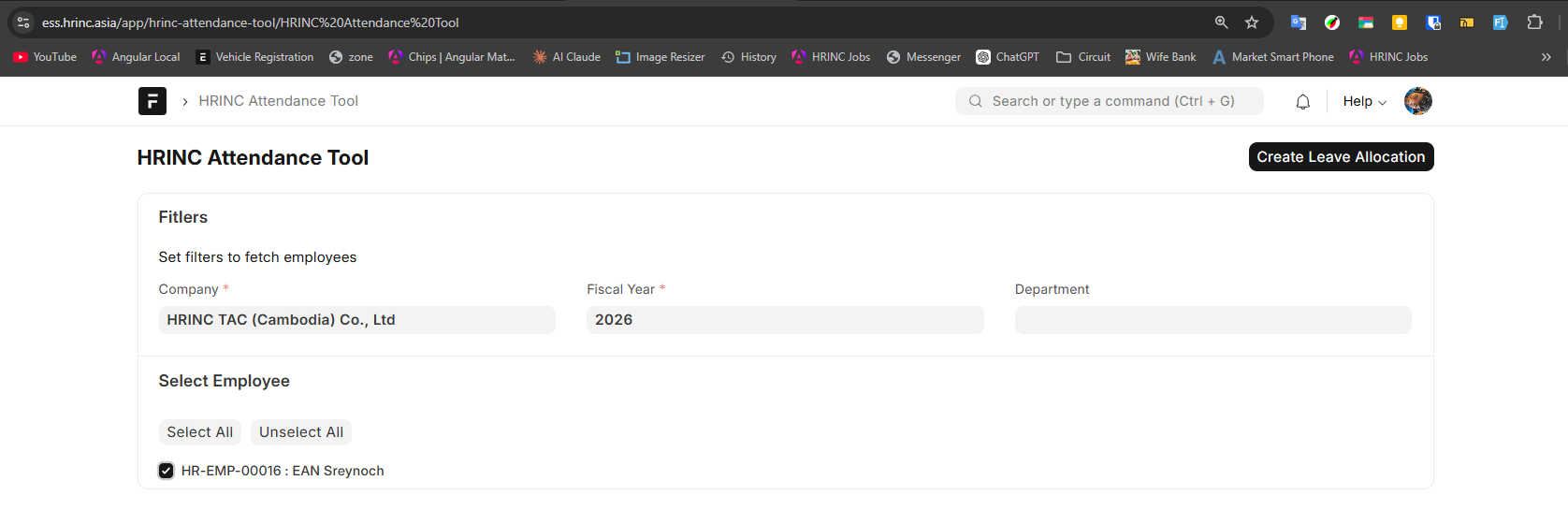
3. HRINC Attendance Tool
Goal: Generate Leave Allocation
- Open the HRINC Attendance Tool.
- Select and Choose Company* | Fascal Year* | Department (Optional)
- Click Create Leave Allocation to Generate Leave allocation
- to Verify Open Leave Allocation (you will see new leaves are submitted)